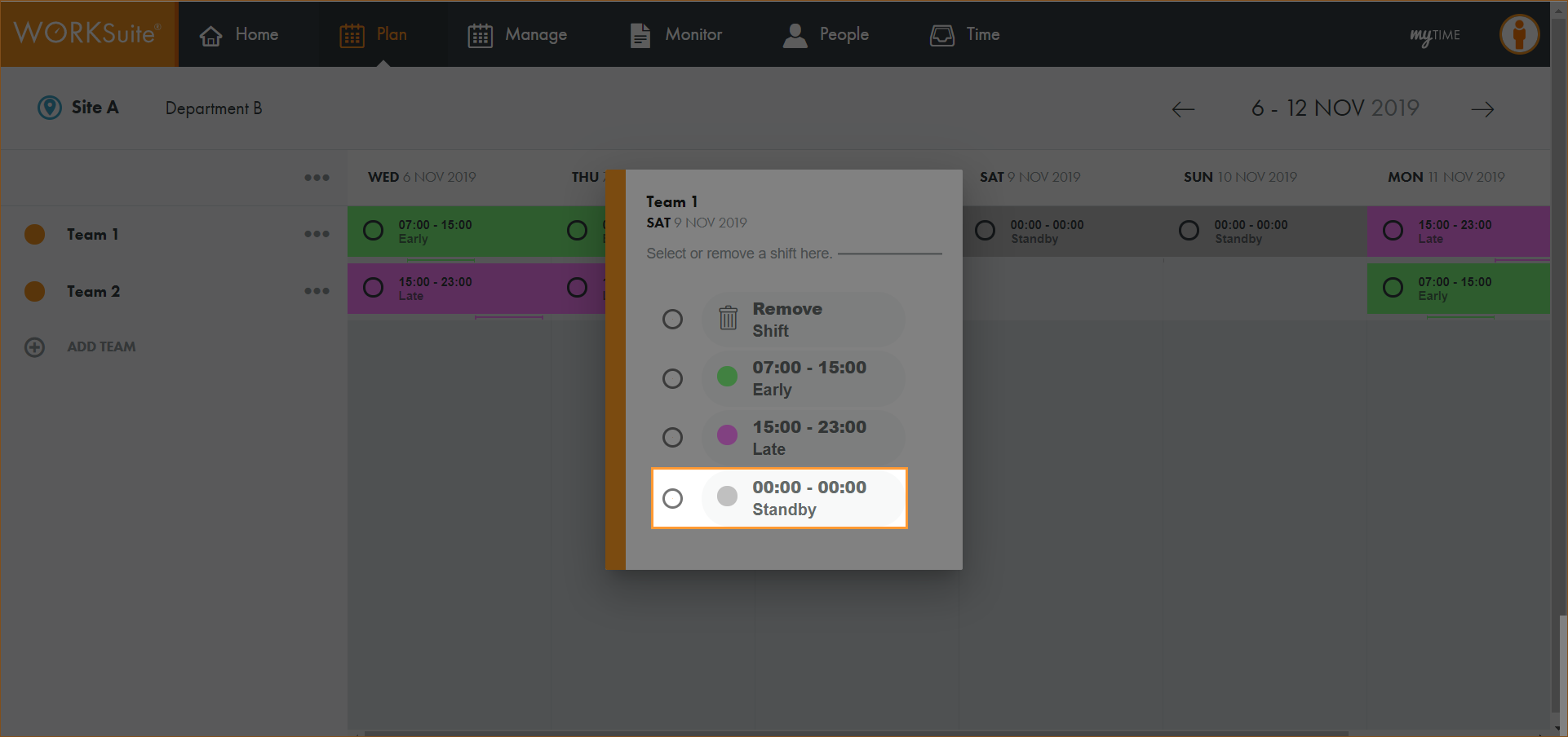
Create a new shift
Use the Plan tab to create a new shift in a calendar.
- Open the Plan tab.
- Click
 and select the work area that you want to work with:
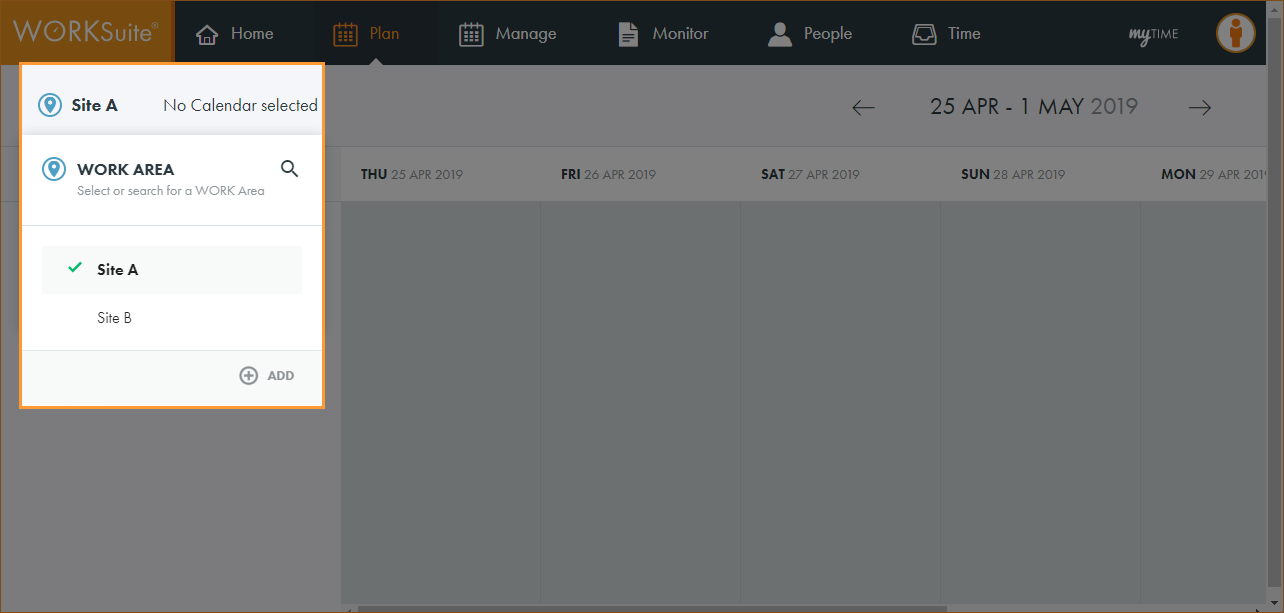
Note: By default, your previously selected work area is preselected.
- Click No Calendar selected and select the calendar that you want to work with:
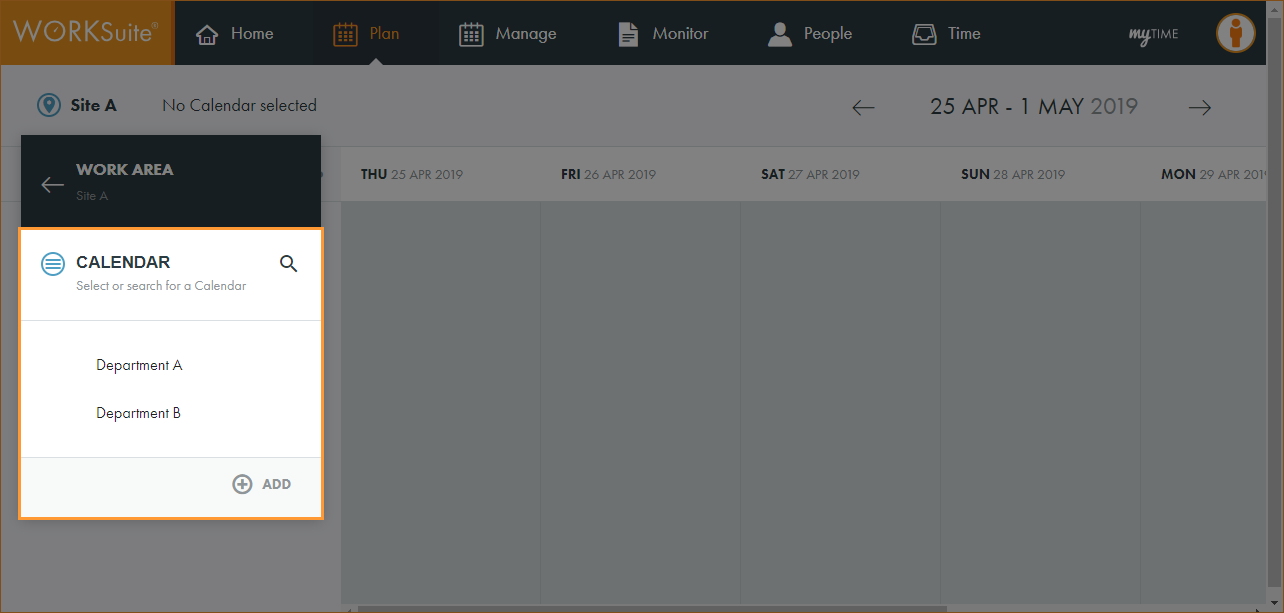
Note: By default, your previously selected calendar is preselected.
- Click … in the calendar header:
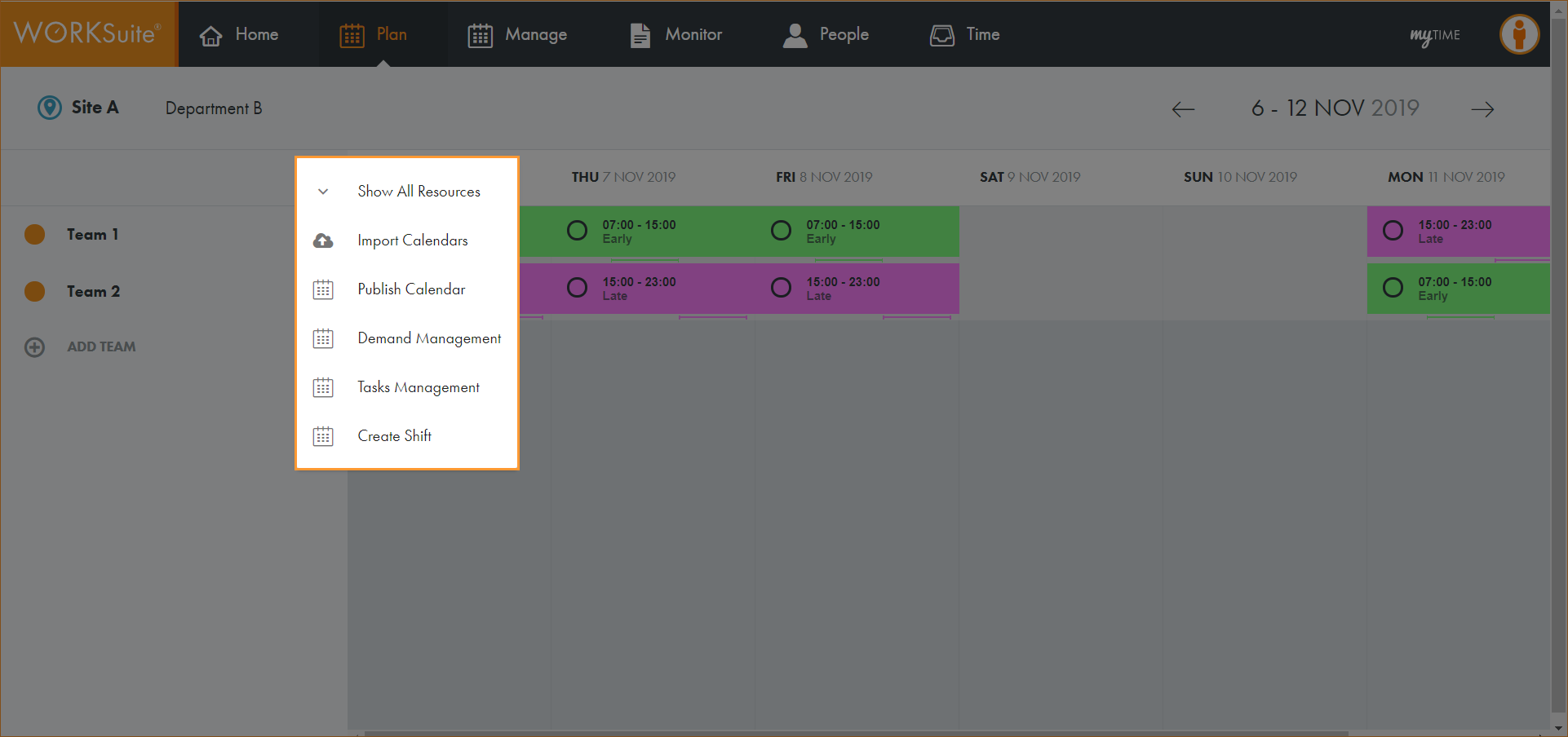
- Select Create Shift.
A popup window is displayed:
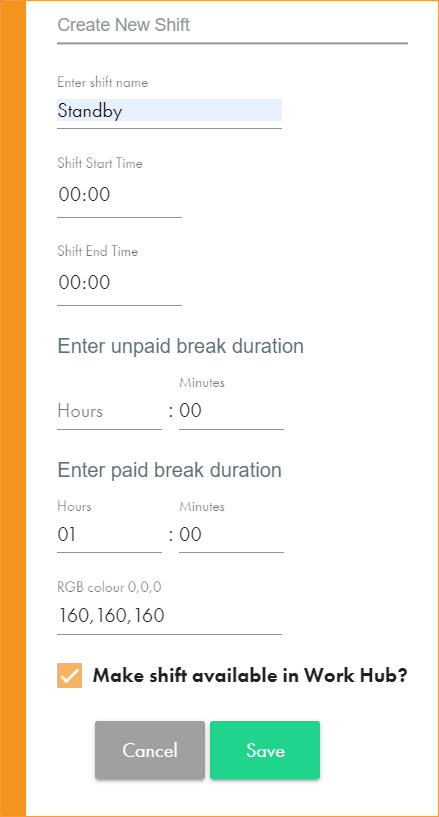
- Enter a clear and concise name for the shift.
- Set the Shift Start and End Time.
- Set the unpaid and paid break duration where applicable.
- Enter an RGB colour to identify the new shift on the calendar.
- Select the checkbox to make the shift available in the Manage tab without the need to republish the calendar.
- Click Save.
- The shift can now be selected when adding a shift to the calendar.